If your Nafa (Chase Securities) account application is stuck on the Centralized Gateway Portal (CGP / Asaan Connect), the reason is usually one of a few common problems. Open any question below to see the fix.
Account Type & Zakat
1. Sahulat vs Normal Account Problem
Many people don't know this rule: you can only have one of these two account types. If you already have a Normal account (with any broker in Pakistan), you cannot open a Sahulat account. And if you have a Sahulat account, you cannot open a Normal account. Most people find this out only when their new application gets stuck in the middle.
The fix: log in to the CGP portal, edit your profile, and change the Account Type to match the account you are trying to open.
Here is how to find it:
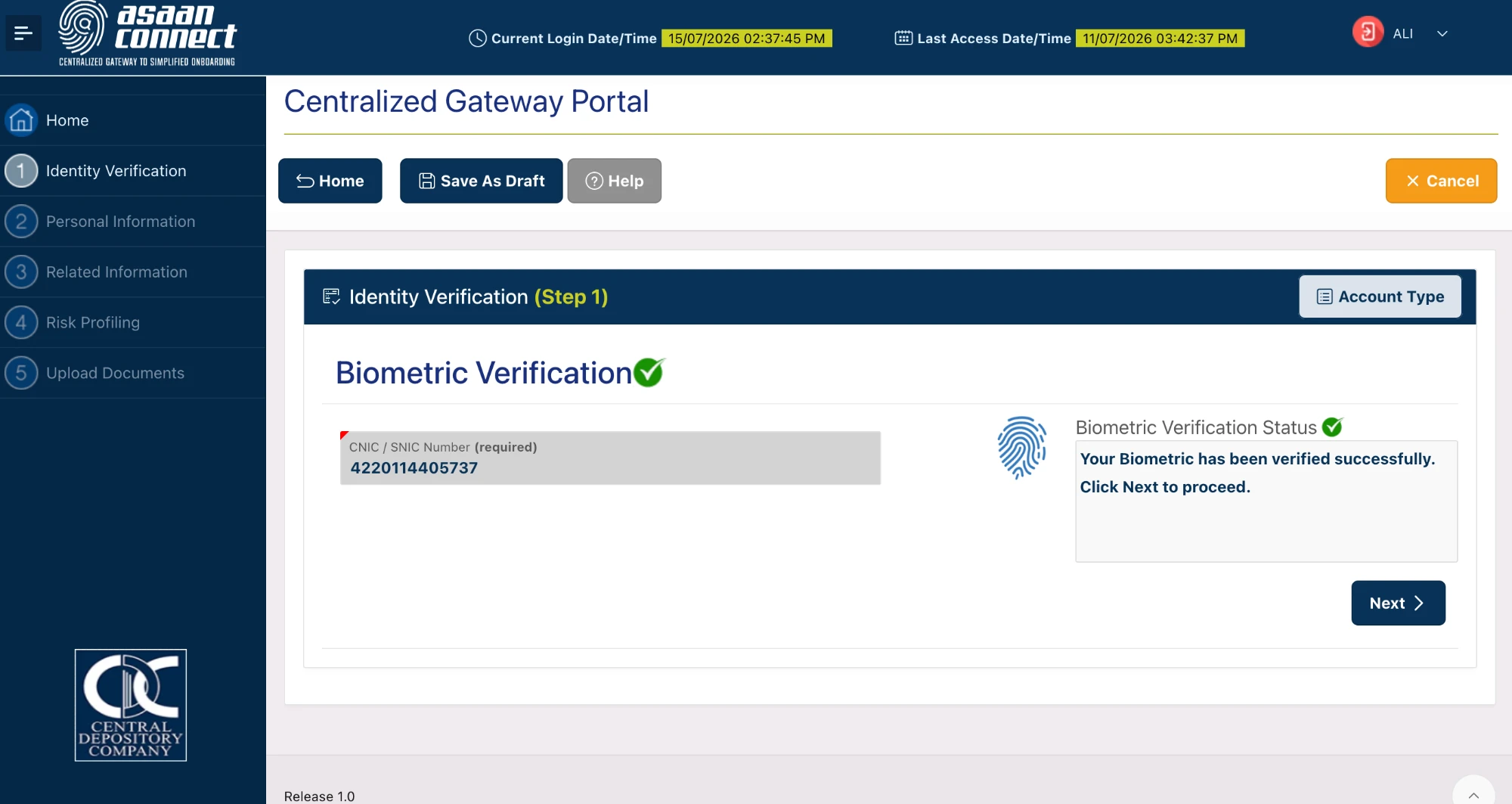
Click the Account Type button in the top-right of the Identity Verification panel. A small window will open where you can switch between Sahulat and Normal:
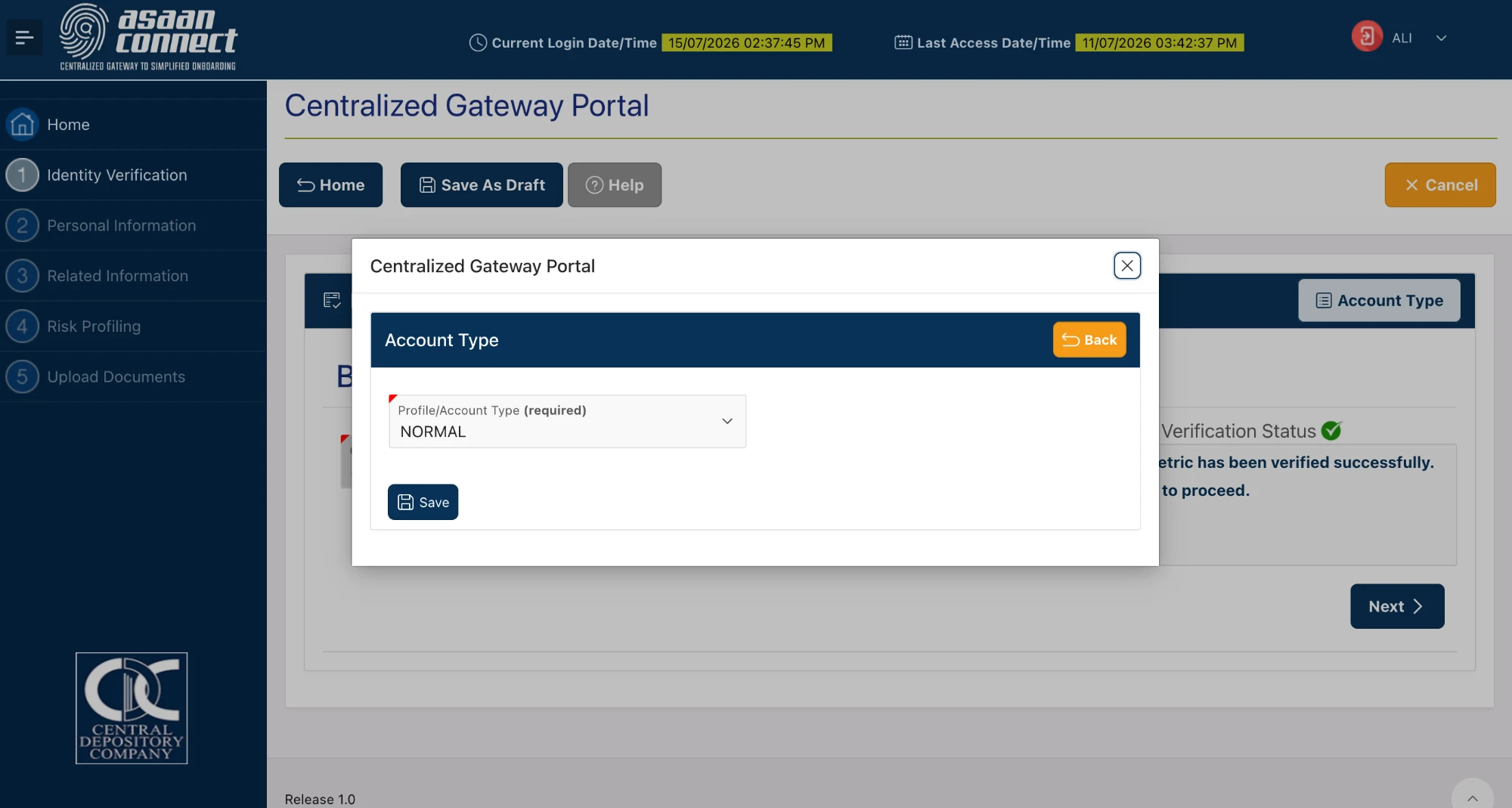
Choose the right option in the Profile/Account Type dropdown, then click Save. Now start the application again and it will go through.
Simple rule: if you already have a Sahulat account anywhere in Pakistan (with any broker), you cannot open a Normal account directly. First ask your current broker to upgrade your Sahulat account to a Normal account — only after that upgrade can you open a new Normal account. Not sure which account you have? Your current broker or CDC customer service can tell you in a few seconds.
2. Wrong Zakat Option Selected
On CGP, Muslims see two Zakat options — Zakat Deductible and Zakat Non-Deductible — and many people select the wrong one. If you select Non-Deductible but don't have a valid CZ-50 form, your application will be stopped for checking.
The fix: if you don't have a CZ-50 form ready to upload, always select Muslim — Zakat Deductible.
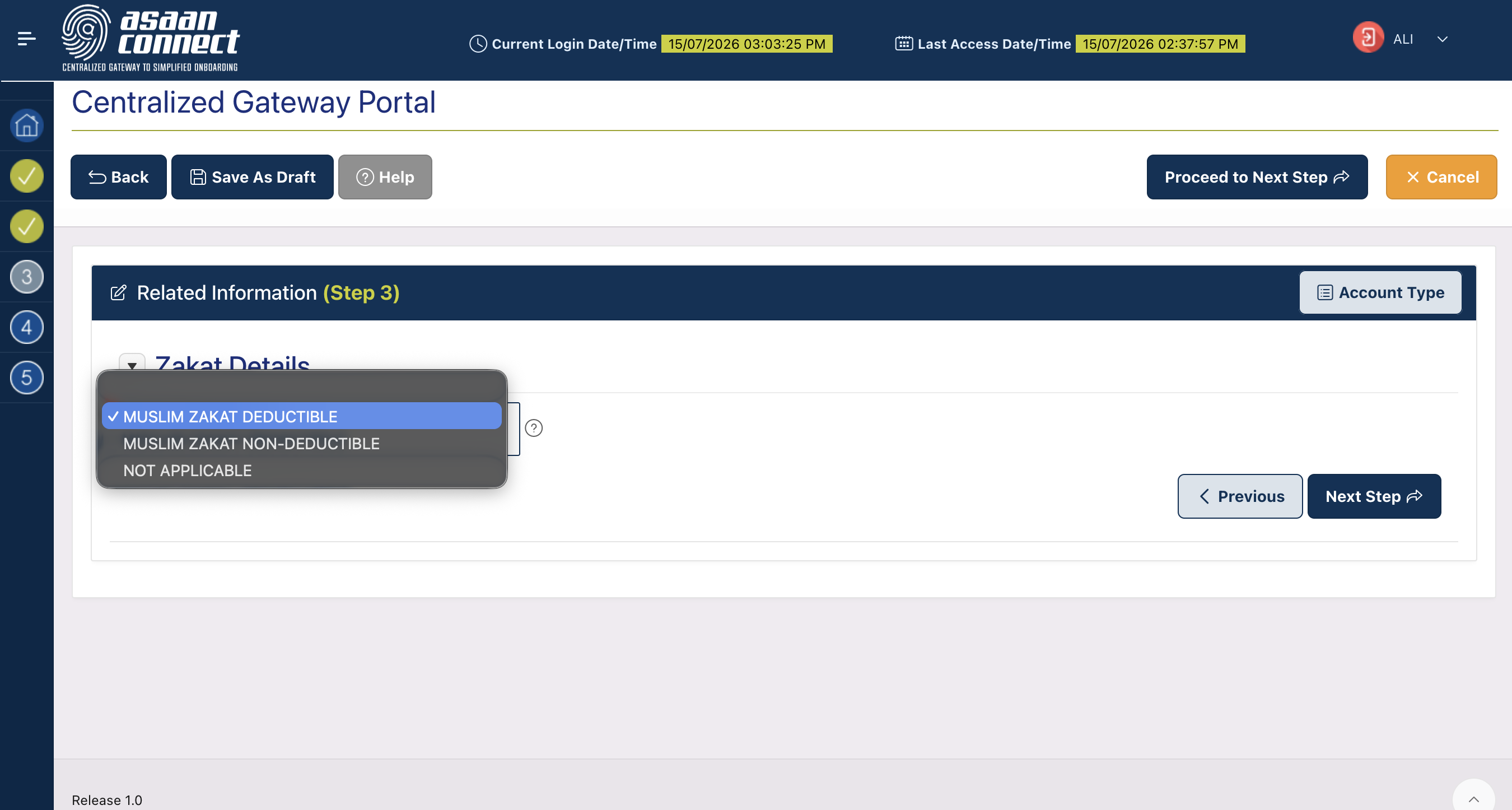
Coming to Nafa from another broker? Keep this setting even if you don't want Zakat deducted — the Chase Securities team removes Zakat manually on Nafa accounts after the account opens. If you change the CGP setting yourself, it only blocks your application.
3. CZ-50 Form Getting Rejected
If you really do have a CZ-50 form (Zakat exemption) and you select Muslim — Zakat Non-Deductible, CGP will ask you to upload the form. Many users' uploads are being rejected, which blocks the application.
The fix: the CZ-50 upload has strict rules. Your upload must have all four of these:
- Front and back of the CZ-50 form (both pages, not just one).
- Your signature on the form.
- A stamp on the form (it must be attested).
- The form must be made on a Rs. 300 stamp paper — plain paper is not accepted.
Upload it again with all four things done, and it will pass in the next review.
Verification
4. Raast ID or IBAN Verification Failing
Some users see an error when CGP tries to verify their Raast ID or IBAN — even though the bank account is real and working.
The reason: in almost every case, your Raast ID is linked to a different bank account, not the one you entered on CGP.
The fix: open your banking app and make sure your Raast ID is linked to the same bank account you entered on the CGP portal. You can either:
- unlink your Raast ID from the current account and link it to the account you gave CGP, or
- go back to CGP and enter the IBAN of the account your Raast ID is already linked to.
Once the Raast ID and the IBAN belong to the same bank account, verification passes on the first try.
Can't remember which account your Raast ID is linked to? Open your bank's app and look for Raast Settings or Manage Raast IDs. Every major Pakistani bank lets you unlink and re-link Raast from the app — no need to call the bank.
5. Biometric Verification Failing on the CDC App
Some users cannot complete the fingerprint (biometric) step on the CDC app — the scan fails, times out, or gets rejected even when the fingerprint reader is working fine.
This usually happens because of a device problem (a reader that isn't supported) or a block on your CNIC from CDC's side. You cannot see the real cause from the app yourself.
The fix: contact Chase Securities directly — they can check the problem from their side and either retry the verification or give you another way to complete it.
- Email: info@chasesecurities.com
- Phone: +92 21 34166043
Keep your CNIC / NICOP number ready and describe the error in one or two lines when you contact them (a screenshot helps).
6. Address Different From Your CNIC
If you change your mailing or residential address on CGP so it no longer matches the address printed on your CNIC, your CNIC alone is not enough anymore — you now have to give proof of the new address.
Our advice: unless you have a real need, keep your mailing and residential address the same as your CNIC. Nothing is ever posted to your home in the Nafa / Chase Securities process, so changing the mailing address only creates extra work for you.
If you must change the address: you have to upload a utility bill in your own name as proof. Any one of these works:
- Electricity bill
- Gas bill
- Water bill
Two things to remember:
- The bill must be in your own name — a bill in your father's, mother's, or spouse's name will not be accepted.
- The address on the bill must match the address you entered in CGP.
Upload the bill in the documents section of the CGP portal, and verification will continue using the bill's address instead of your CNIC address.
Portal Fields & Access
7. Which Broker to Select in "Intermediary Broker Name"
At one step in the CGP application, you will be asked for an Intermediary Broker Name. In simple words, this is the broker that will place your trades. The dropdown sometimes shows only one broker (or none at all), which confuses people.
The answer is always Chase Securities — that is the broker behind the Nafa app.
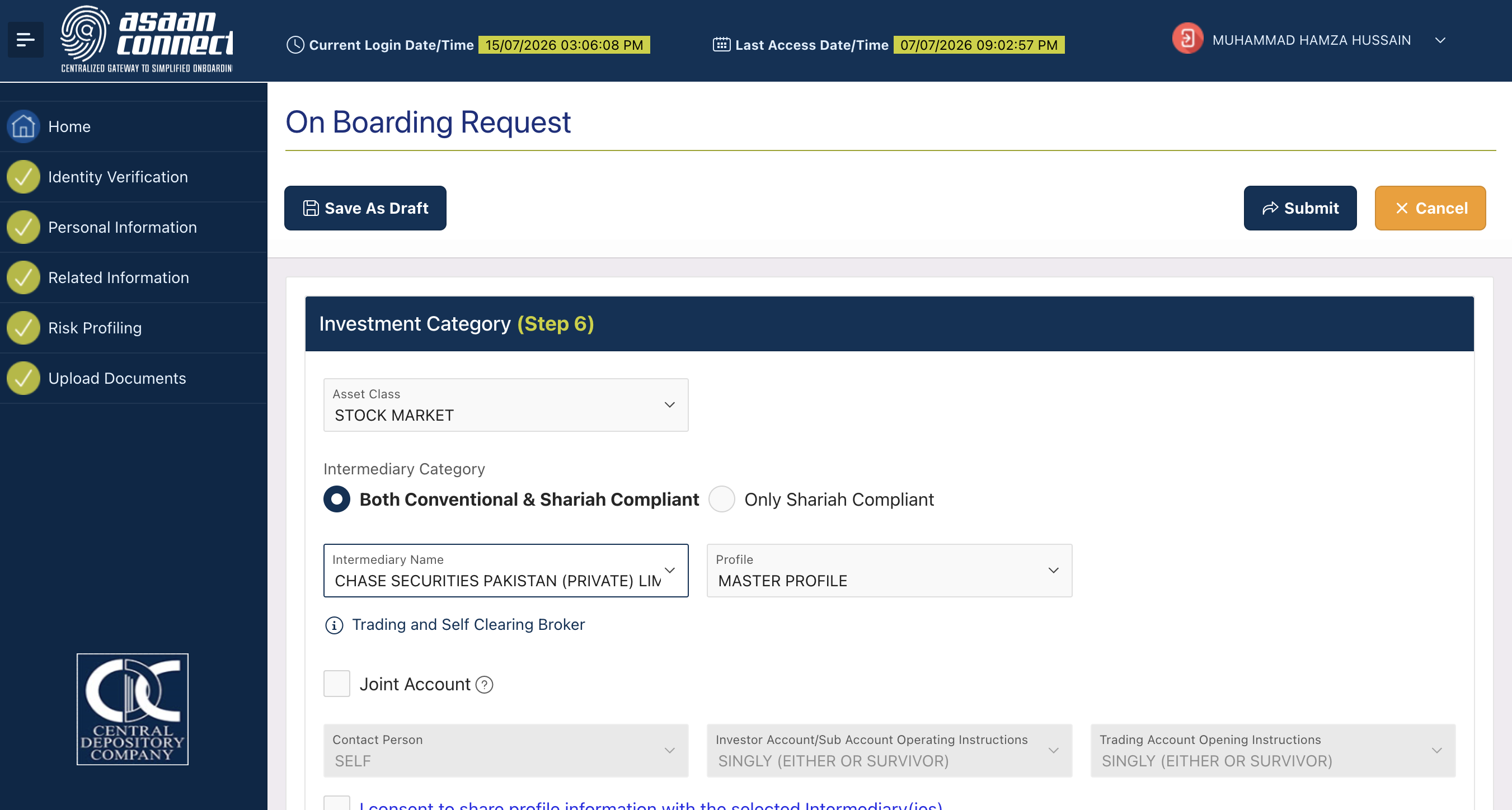
If Chase Securities does not appear in the dropdown, close your browser and open the CGP portal again using this direct link — it selects Chase for you automatically:
https://cgp.cdcaccess.com.pk/cdc/cgp/r/centralized-gateway-portal/login?intermediary=FIM2FSTPZWPJ8
Complete your application in that session and the broker field will be filled correctly.
8. Already Have a CGP Account? How to Add Chase Securities
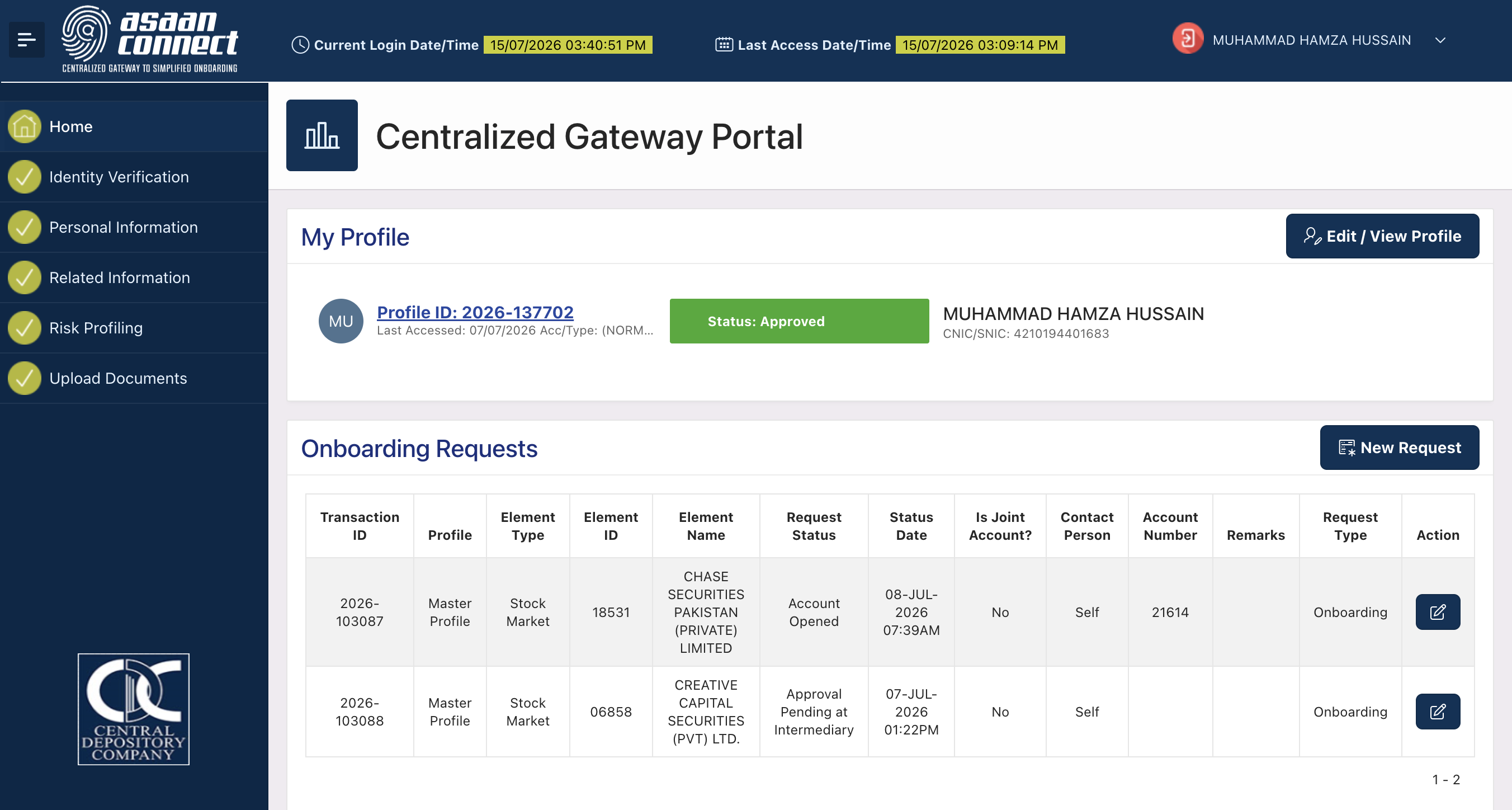
If you already have a CGP (Asaan Connect) profile — for example, because you opened an account with another broker before — you do not need to do your KYC again. CGP lets you send a new broker request from your existing account. You just select Chase Securities as the broker.
The fix: log in to CGP, add a new request, and select Chase Securities as the intermediary broker.
Here is the flow.
Step 1 — Add a new broker request
From your CGP dashboard, open the New Request option:
Step 2 — Select Chase Securities as the broker
On the intermediary broker step, choose Chase Securities:
If Chase Securities doesn't appear in the dropdown, use the direct link in question #7 above — it selects Chase automatically.
What happens next
After you submit, your request goes to Chase Securities. The whole process — from submission to the welcome email from Ticker Analysts that makes your Nafa app ready for trading — is usually completed within 2 working days. You will see the confirmation on the CGP portal along the way (see question #11).
Dealer Change, Moving Shares & Account Status
9. How to Change Your Dealer to Nafa (Polygot Labs)
If you already have a Chase Securities account and want to use it through the Nafa app, you need to change your dealer to Polygot Labs (PolygotLabs - 028). There is no button in the app for this — you have to email Chase Securities.
Here is how to do it.
Email Chase Securities to change your dealer
Use the template below — click Open in Email to open it in your mail app with everything filled in, or Copy body to paste it into an email. Replace the parts in [brackets] with your own details before sending.
Dear Chase Securities Team,

I am an existing Chase Securities account holder and would like to request a change of my dealer to PolygotLabs - 028 (Polygot Labs / Nafa App) so that my account can be operated through the Nafa app.

My account details are as follows:

  - Full Name: [Your full name as per CNIC]
  - CNIC / NICOP Number: [Your CNIC or NICOP number]
  - Chase Securities Account / UIN: [Your Chase account number or UIN]
  - Registered Mobile Number: [Your registered mobile]
  - Registered Email: [Your registered email]

Please confirm once the dealer change has been processed, and let me know if any additional documentation is required from my side.

Thank you,
[Your name]
Chase will reply to confirm and update your dealer, usually within 2 working days.
Note: after your dealer changes to Polygot Labs, you won't be able to access StockIntel, Finalysis, and the Chase Securities mobile app. The Chase web terminal will still work. All your trading moves to the Nafa app.
11. CGP Approved but Nafa Still Shows "Under Review"
Chase Securities has approved you on the CGP portal, but the Nafa app still says Under Review. Don't worry — nothing is wrong. You are just between two stages.
What's happening: CGP approval means Chase has your documents. But Nafa shows your account as active only after Ticker Analysts finishes the final setup on our side — connecting your Chase account, preparing your Nafa portfolio, and switching on trading.
The fix: simply wait for the welcome email from Ticker Analysts. When that email arrives, your Nafa account is fully ready — you can add money and start trading. Refreshing the app or messaging support before the email won't speed things up — the process runs automatically on our side.
If more than 2 working days have passed since your CGP approval and you still haven't received the welcome email, email hello@tickeranalysts.com with your CNIC and Chase account ID and we will check where things are stuck.
12. Non-Resident (NRP) Tagging Document Issues
If you are a Non-Resident Pakistani (NRP) moving from another broker to Nafa, Chase Securities needs a tagging document from your current broker before your NRP account can be opened — and many users are getting stuck at this step.
Detailed guide coming soon. We are still confirming the exact requirements for the tagging document (the format, who signs it, and how it differs from broker to broker). Until then, if you are an NRP stuck at this step, email hello@tickeranalysts.com with your CNIC / NICOP and the name of your current broker — our team will tell you exactly what your broker needs to provide.